The quickest way to light an interior in V-Ray is simple: let daylight do the main work with a V-Ray Sun and Sky (or an HDRI dome), help it through the windows, then add only the artificial lights the design really has. Set your exposure on the camera, not by cranking light intensity, and fine-tune the balance later with Light Mix. That is the whole idea. The rest of this guide walks you through it step by step in 3ds Max with V-Ray 6, in the same order I use on real interior scenes.
I have been lighting interiors in 3ds Max and V-Ray since 2019, and most beginner lighting problems I see come from the same few habits: too many lights, wrong exposure, and no clear main light. Fix those and your renders already look more natural.
Key takeaways
- Let daylight be the main light: a VRaySun with VRaySky, or one HDRI dome.
- Fix brightness with camera exposure (EV), not by pushing light intensity.
- Add only the artificial lights the design really has, with IES files and Kelvin values.
- Use Light Mix to balance light groups after one render instead of many test renders.
- Work in real-world scale and close every light leak before you start lighting.
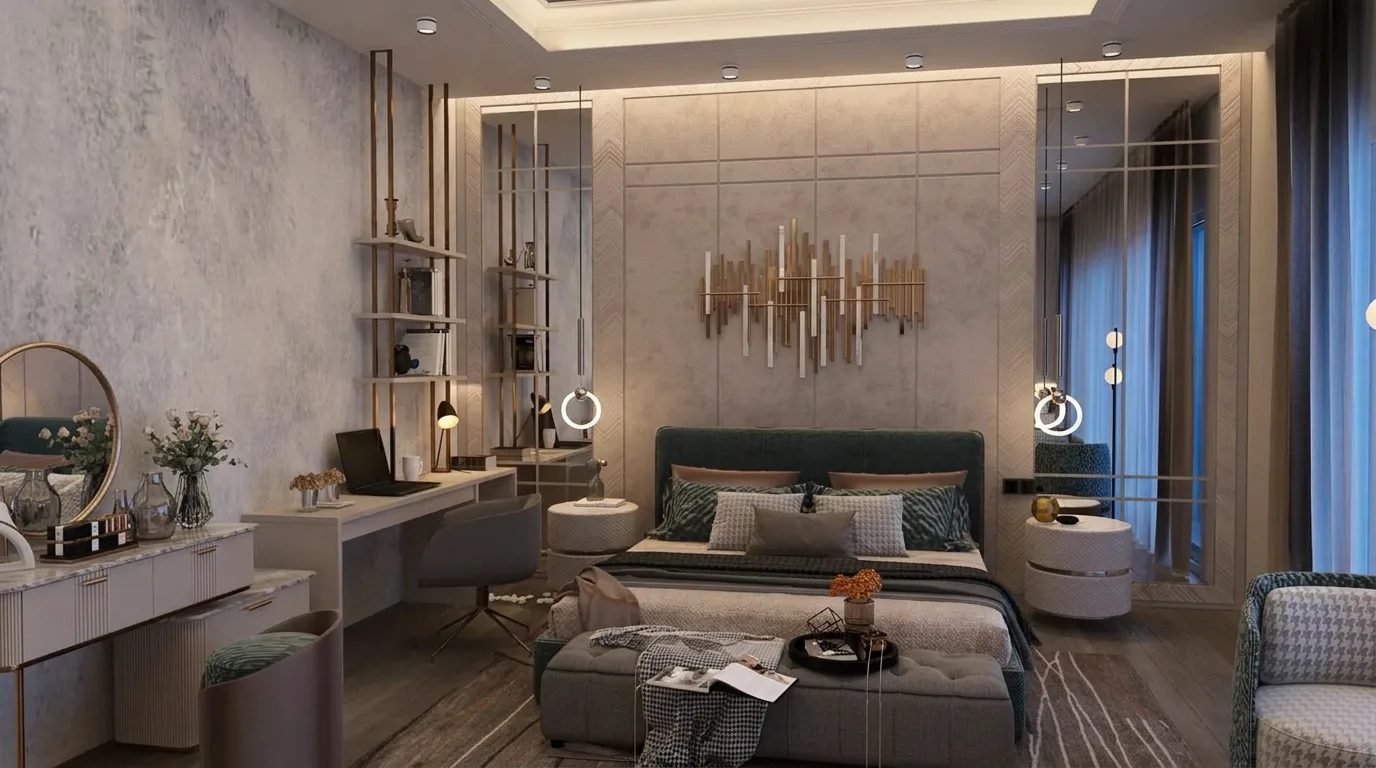
Start With a Clean, Real-Scale Scene
Lighting in V-Ray is physically based. That means light falls off with distance in a realistic way, and that only works if your scene is in real-world scale. Before you add a single light, check this:
- System units: Customize > Units Setup. Work in centimeters or meters, and make sure the System Unit Scale matches your display units.
- Model scale: A door should be around normal door height, a sofa should be sofa sized. Imported models from the web are often in the wrong scale.
- Closed room: Walls, ceiling and floor should have thickness and no gaps. Light leaking through corners makes the room look cheap.
- Neutral test material: Use a light grey override material (Render Setup > V-Ray > Global switches > Override mtl) while you set up light. Avoid pure white, because real paint never reflects all the light.
Step 1: Choose Your Main Light Source
Every good interior has one main light. In most daytime renders, that is the sun and sky coming through the windows. You have two good options in V-Ray 6.
Option A: V-Ray Sun and Sky
Create a VRaySun from the Create panel (Lights > VRay > VRaySun). When 3ds Max asks if you want to add a VRaySky environment map, say yes. Now the sun position controls both the direct sunlight and the sky color. A low sun gives warm, long shadows. A high sun gives harder, whiter light.
For calm interiors, I often keep the sun just outside the frame so it throws a few soft patches of light on the floor or a wall, instead of large hard stripes everywhere. The sun size multiplier lets you soften shadow edges a little.
Option B: HDRI Dome Light
Create a VRayLight, set its type to Dome, and load an HDRI image in the texture slot. An HDRI gives you natural sky color and soft, even light. It is a great choice for overcast or “soft day” moods. Rotate the HDRI until the brightest area of the sky sits on the window side of your room.
You can use an HDRI dome together with a VRaySun if you want a sharper sun direction. Just keep the HDRI’s own sun weaker, or you get two sets of shadows.
| Option | Best for | Watch out for |
|---|---|---|
| VRaySun + VRaySky | Clear sun direction and sharp sun patches | Keep the sun just outside the frame for a calm look |
| HDRI dome light | Soft, natural sky light and overcast moods | If you add a VRaySun too, weaken the HDRI’s own sun to avoid two shadows |
Step 2: Help Daylight Into the Room
Daylight from outside can look weak in deep rooms. Instead of adding random fill lights, guide the light that already exists.
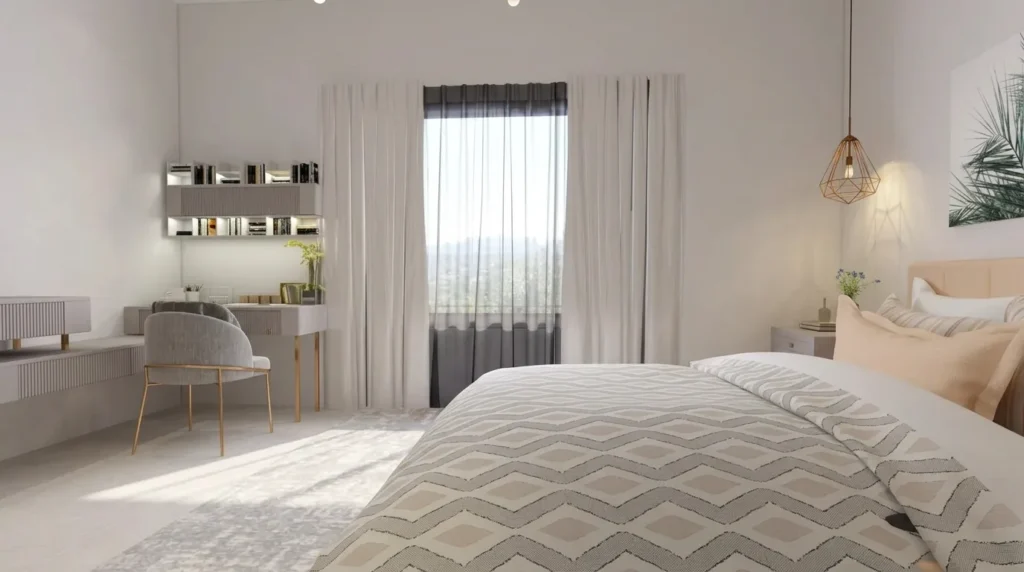
- Skylight portals: Place a VRayLight plane in each window opening, facing inward, and enable the “Skylight portal” option. The portal does not add new light. It tells V-Ray where sky light enters, which usually means cleaner results in the same render time.
- Glass: Make sure window glass is a proper refractive glass material. If the glass is set to cast opaque shadows, the room goes dark.
- Curtains: Sheer curtains with a bit of translucency soften harsh sun and make the light feel natural.
If you also care about the view through the glass, see my guide on making window views look real in interior renders.
Rule of thumb
If the room looks too dark, change the camera exposure first. Add a light only where the design has a real fixture.
Step 3: Set Exposure on the Camera
This is the step most beginners skip. A real room is much darker than the sky outside. A photographer does not add ten lamps; they change the camera exposure. Do the same.
Use the 3ds Max Physical Camera. In its exposure settings, adjust the exposure value (EV), or use ISO, shutter speed and aperture if you think like a photographer. Lower EV means a brighter image. Change the camera until the interior looks right, and let the window go a little bright. That small blow-out is what real interior photos look like.
In the V-Ray Frame Buffer, turn on the color corrections you need, such as Exposure, Filmic tonemap or Highlight burn, to control bright areas without making the whole image flat.
Step 4: Add Artificial Lights That Make Sense
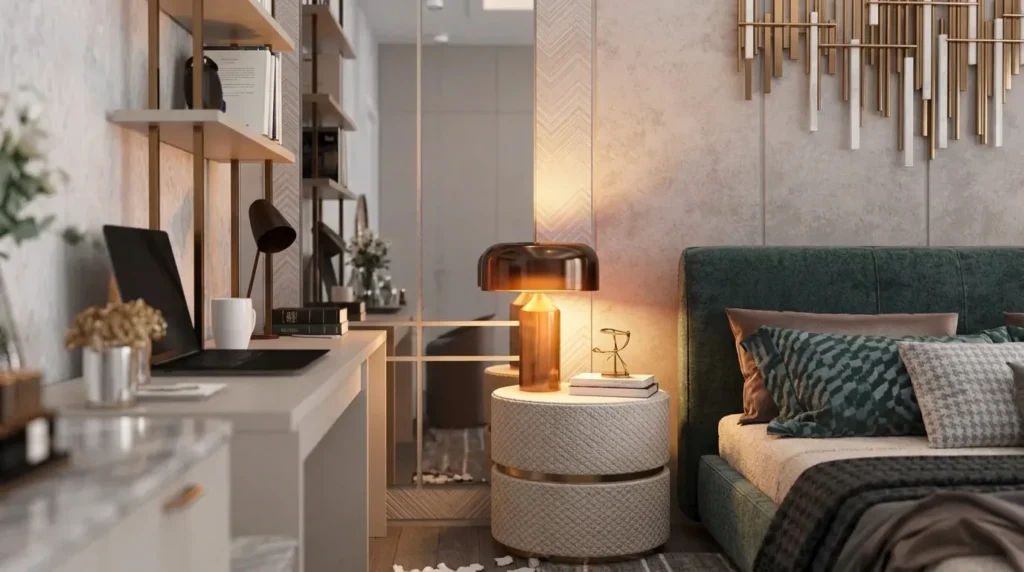
Only add lights the design actually has: ceiling downlights, cove lights, pendants, table lamps, a strip under a shelf. Each one should have a fixture in the model.
Downlights With IES Profiles
Use a VRayIES light with a real IES file from a lighting manufacturer. IES files give you the real beam shape on the wall, those soft scallops you see in hotel corridors. Place the light just below the ceiling fixture so it does not hide inside the geometry.
Cove and Strip Lights
For hidden cove lights, a thin VRayLight plane or a self-illuminated mesh along the cove works well. Keep it out of direct view of the camera if the real light would be hidden.
Color Temperature
Set lights to Temperature mode and choose a Kelvin value instead of picking a random orange color. Warm white for homes, cooler white for offices and kitchens is a common choice. If you want to see what a Kelvin value looks like in RGB, try our free Kelvin to RGB converter.
Step 5: Balance Everything With Light Mix
Add the LightMix render element (or enable Light Mix in the V-Ray Frame Buffer layers). After one render, you can change the intensity and color of each light group in the frame buffer without rendering again. This is the fastest way to try a day mood, an evening mood and a night mood from one render.
When you like a balance, you can apply it back to the scene lights, so the next render starts from the same look.
Step 6: Render Settings for Clean Light
For most interior stills, the default V-Ray 6 settings are a good base: Brute force for primary GI and Light cache for secondary bounces, with progressive or bucket image sampling. Then:
- Use the noise threshold to control quality instead of raising every subdivision by hand.
- Turn on a denoiser render element for test renders to see the final look faster.
- Remove the material override before final renders and check that no material is too bright or too saturated.
If you want a quick starting point, our V-Ray Render Settings Generator gives you base values for your scene type.
Quick Checklist: V-Ray Interior Lighting in Order
- Fix scale and close all light leaks.
- Add one main light: VRaySun + VRaySky or an HDRI dome.
- Put skylight portals in the windows.
- Set exposure on the Physical Camera.
- Add only the artificial lights the design has, with IES and Kelvin values.
- Balance groups with Light Mix, then render final.
Common Mistakes
- Too many fill lights: Hidden lights everywhere kill shadows and make the room look flat. Fix exposure first.
- Pure white walls: Walls set to full white bounce too much light and burn out. Use a slightly off-white color.
- Mixed color temperatures by accident: One lamp cold, the next warm, with no design reason. Keep a clear plan.
- Exposure fixed with light intensity: Pushing every light very high leads to burnt highlights and noise. Change the camera instead.
- Lights inside geometry: A light hidden inside a fixture or ceiling may be blocked completely. Check light positions in a test render.
Frequently Asked Questions
Should I use V-Ray Sun or an HDRI for interiors?
Both work. VRaySun with VRaySky gives clear sun direction and sharp sunlight. An HDRI dome gives softer, more natural sky light. Many artists combine an HDRI for sky color with a VRaySun for direction.
Why is my V-Ray interior render too dark?
Usually the camera exposure is set for outdoor light. Lower the EV on your Physical Camera, check that window glass is not blocking light, and add skylight portals before adding more lights.
Do skylight portals make the render faster?
They help V-Ray sample the light coming through windows more efficiently, which often means less noise for the same time. Results depend on the scene, so test with and without.
What is Light Mix used for?
Light Mix lets you change the brightness and color of each light or light group after rendering, in the frame buffer. It saves many test renders when you are balancing day and night moods.
Does this work in V-Ray 7 too?
The core workflow (sun or dome, portals, camera exposure, IES lights, Light Mix) is the same in recent V-Ray versions. Menu names can move a little, so check the official Chaos documentation for your version.
References
Official documentation and research used for this article:
- Chaos Docs: VRaySun (V-Ray for 3ds Max) – how the V-Ray sun and sky system works.
- Chaos Docs: Plane, Disc and Sphere Light – plane light settings, including the skylight portal option.
- Chaos Docs: VRayIES – using real .ies light profiles in V-Ray.
- Chaos Docs: VRayLightMix – changing light intensity and colour in the VFB after rendering.
- Autodesk 3ds Max Help: Physical Camera – the Physical Camera and its exposure controls.
Need Interior Renders Done for You?
If you’d rather focus on design and leave the lighting and rendering to someone else, take a look at my portfolio and the interior rendering service. Send your plans or SketchUp/3ds Max file on WhatsApp and I’ll reply with an exact quote.